

This tutorial gives you a range of tools to help you train faster and more effectively. The goal is for you to focus on the content. A key aspect here is also being able to find useful training material as quickly as possible.
Part 7 covered how to organize your own databases, and Part 13 focused on using Powerbooks and Powerbases. So by now, you should be able to build your own databases and make use of the sources provided by Powerbooks and Powerbases. In this episode, we’ll show you how to quickly find specific themes in large databases. Of course, you can then also save these search results in your own custom database.
CTRL+F – and you’ll find everything
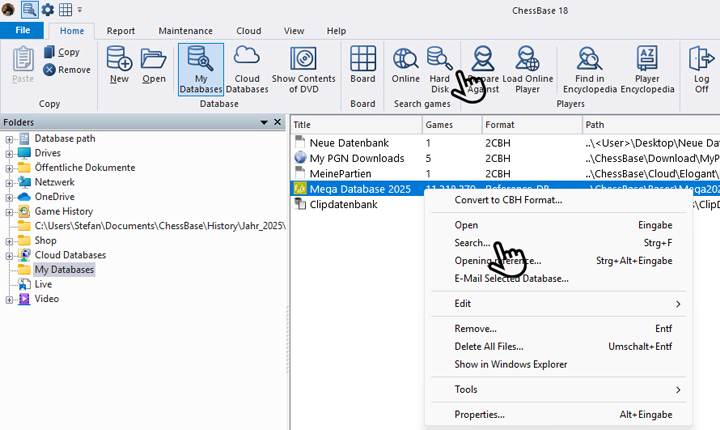
We already mentioned in the introduction that the CTRL+F shortcut plays a key role- now we’ll explain, using the Mega Database 2025 as an example, where to enter this shortcut to open the search dialog:
When you’re on the start screen of ChessBase´26, click on “Hard Disk” to get to the screen shown below. This opens the reference database (you can also do this using the shortcut SHIFT+CTRL+F).
There’s another way to open the search more directly: simply select the database you want to search for model games and press CTRL+F. Alternatively, you can right-click on the database and choose the “Search…” option from the menu. This opens the search dialog shown in the next screenshot.
YOUR EASY ACCESS TO OPENING THEORY
Be well prepared with the new Opening Encyclopaedia 2026! Whether you want to build up a reliable and powerful opening repertoire or find new opening ideas for your existing repertoire, the Opening Encyclopaedia covers the entire opening theory on one product and is the ideal start for your opening training. Many new articles enrich the current theory with new or revisited ideas. The Encyclopaedia can help you learn openings quickly and give you a head start on your next opponent. Each article contains explanations and annotated games illustrating typical plans to deepen your understanding.

If you check the box for “Always use advanced dialog” at this point, you will be taken to the detailed selection options, which we will explain below.
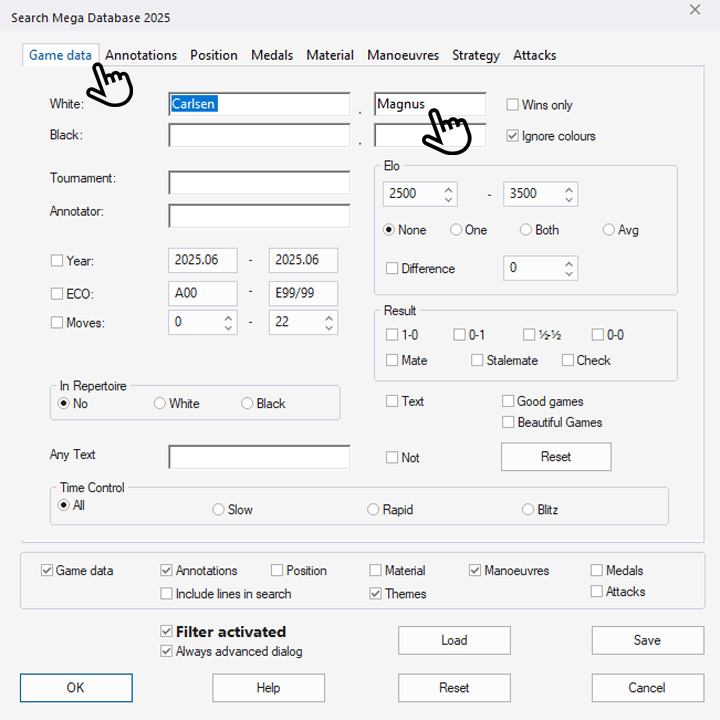
In the top row of the search mask, you will find the selection menus “Game data,” “Annotations,” “Position,” “Medals” (we will explain this in more detail in a later tutorial), “Material,” “Manoeuvres,” “Strategy,” and “Attacks.” We are currently in the “Game Data” selection and have entered “Carlsen, Magnus” there. Further down, you can already see some checkmarks and dots set automatically. The checkmarks below the repeated categories are set based on the following explanations, and finally, you will also see a checkmark at “Always advanced dialog” – we explained that above.
We now show a few more selection options from the selection menus, which you can customize as needed for your purposes.

In the “Annotations” menu, we enter the word “control”; this must then appear in the comments. We also want to explore Carlsen’s endgame strength and search for “Critical Endgame Position.”

Next, we move on to the “Strategy” menu: here we want to see how the multiple world champion uses “Space Advantage” in “Calm” games.
Take a look at the other categories as well and try out for yourself what can be selected in each area. You can preset with impressive precision what ChessBase´26 should search for.
Once you have preset everything as desired, simply click the “OK” button at the bottom left – the search begins, and the following window opens:
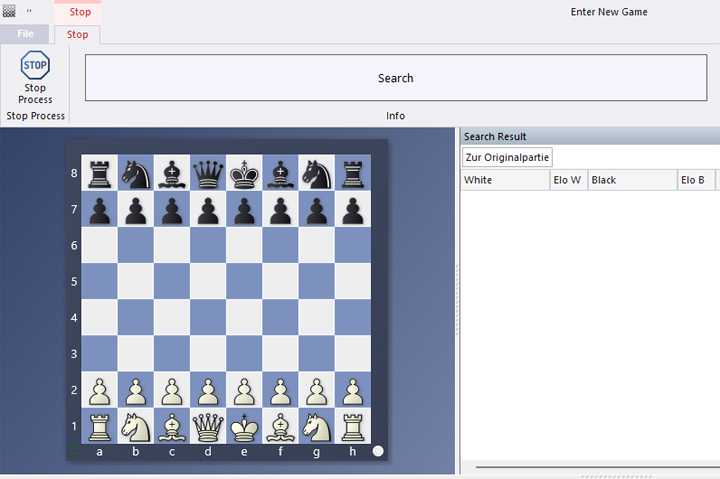
Which, after the search is completed successfully, finally looks like this:
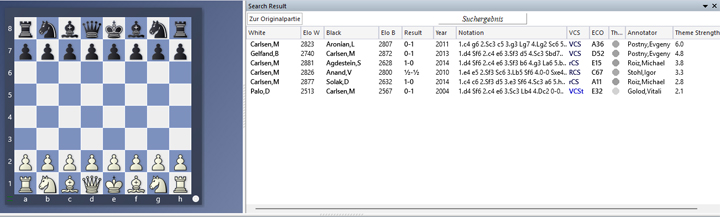
You can see that the search was well narrowed down: ChessBase´26 found games, but the list is short and manageable. We have already covered the individual columns of such lists in earlier parts of the tutorial, but the last column is new – it indicates how well the game matches the search criteria. In the example, we see four annotated games, led by a World Championship final game between Carlsen and Gelfand.
The new Corr Database 2026 is the large ChessBase collection of correspondence games from the period from 1804 to 2025. With more than 80,000 tournaments and over 2.5 million correspondence games, the Corr 2026 is a must for all Correspondence chess fans.
Pro tip
But keep the following in mind: a certain number of presets narrows down the search results to a manageable number of found games. However, if you set too many criteria, the search may take too long and find no games that meet all the conditions.
Now we wish you lots of fun analyzing your search results.
——
ChessBase has developed over decades to become what it is now in its 2026 version. The program has countless options, which we will present here in small portions – so you can design your interface for pleasant daily use and keep learning about new options and how to use them to get the most out of ChessBase´26 and save time.
We hope that this tip will help you to have more fun and be more successful when using ChessBase´26. You can find more tips and hints on our support pages and FAQ pages.
All parts of the series and more links:
FRITZ is more than just a chess engine – it’s a training revolution! Whether you’re taking your first steps into the world of club chess, or already playing at a tournament level: with FRITZ, you can train more efficiently, intelligently and with a more personalised approach than ever before.
As the author explains in the introductory video, knowing the classic games from the past enriches your chess understanding in general, and helps to improve the level of your own games.